
How to Bulk Edit Compare-At Price in Shopify (2026 Guide)
Three ways to bulk edit compare-at price in Shopify — the native bulk editor, CSV import, and a one-click app. Pros, cons, and step-by-step walkthroughs.
If you’ve ever tried to put your whole Shopify catalog on sale, you already know the problem. The sale itself takes a minute to plan — pick a percentage, pick the products, hit go — but actually applying the new compare-at prices across hundreds or thousands of variants can take hours. Worse, undoing it later is just as painful.
This guide covers the three real ways to bulk edit compare-at prices in Shopify, when each one makes sense, and the gotchas that catch most merchants the first time.
TL;DR
- Shopify’s built-in bulk editor is fine for small catalogs (under ~50 variants) and one-off tweaks. It does no math, no rounding, no preview, and no revert.
- CSV import scales further but is error-prone and offers zero safety net — one bad column and you’ve overwritten live prices with garbage.
- A dedicated app like No Brainer: Sale & Compare-At is the only option that previews changes, handles drift, rounds prices cleanly, and lets you revert the entire sale with one click.
What is a compare-at price (and why it matters)?
In Shopify, every product variant has two price fields:
- Price — what the customer actually pays.
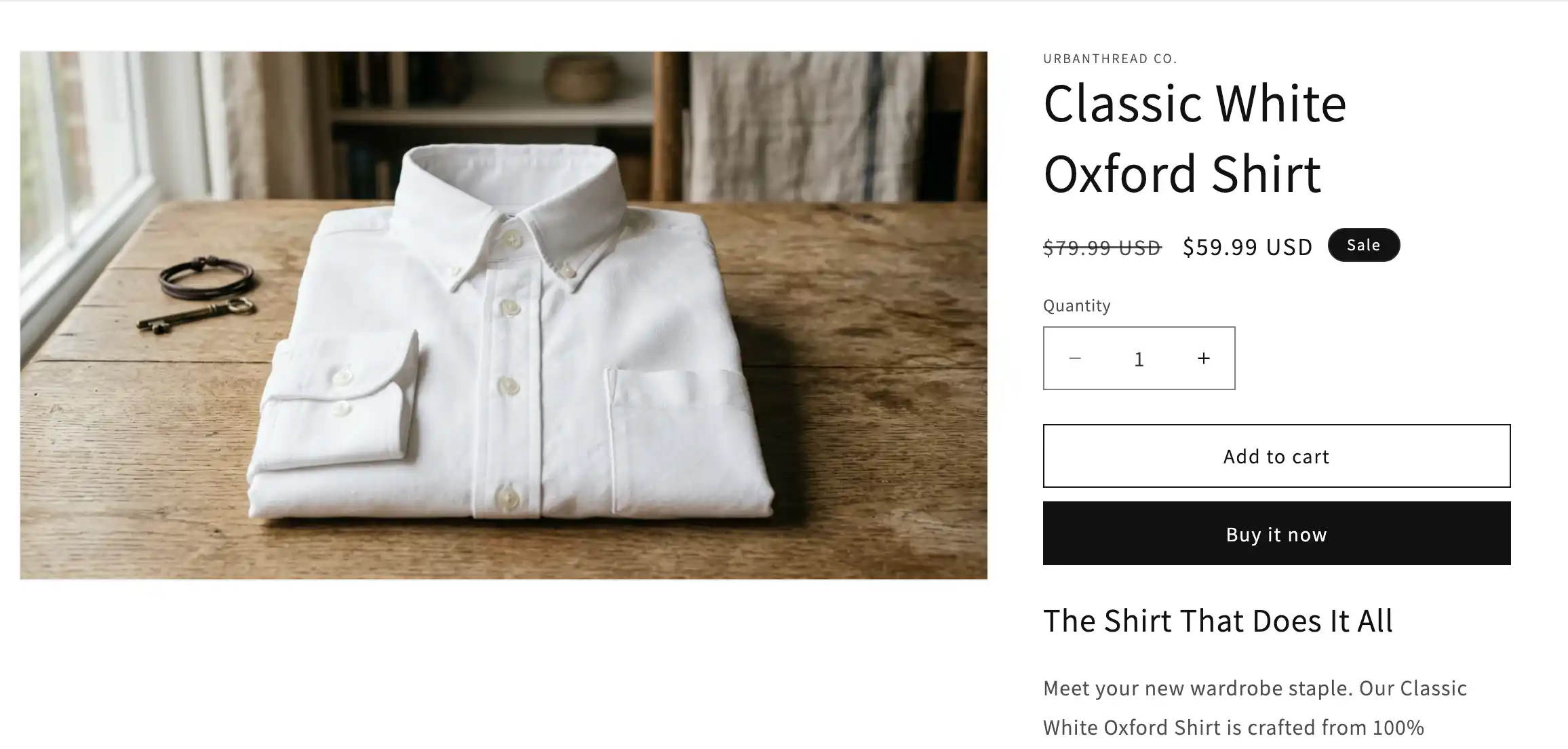
- Compare-at price — the “original” price, displayed with a strikethrough next to the sale price on your storefront.
Compare-at price is how Shopify communicates a discount visually. If you set price to $80 and compare-at to $100, the storefront shows $100 $80 and most themes will tag it as “Sale”. Buyers respond to that visual cue — it’s one of the most reliable conversion levers on a Shopify storefront, which is exactly why getting compare-at right at scale matters.
The catch: compare-at is set per variant, not per product, not per collection. A store with 1,000 products and 4 variants each is 4,000 fields you’d theoretically need to touch.
Method 1 — Shopify’s built-in bulk editor
Shopify ships a bulk editor inside the admin. It works, but it’s a manual spreadsheet — no math, no targeting, no rollback.
Steps:
- In the Shopify admin, go to Products and select the products you want to edit (use the row checkboxes, or filter by collection or tag first).
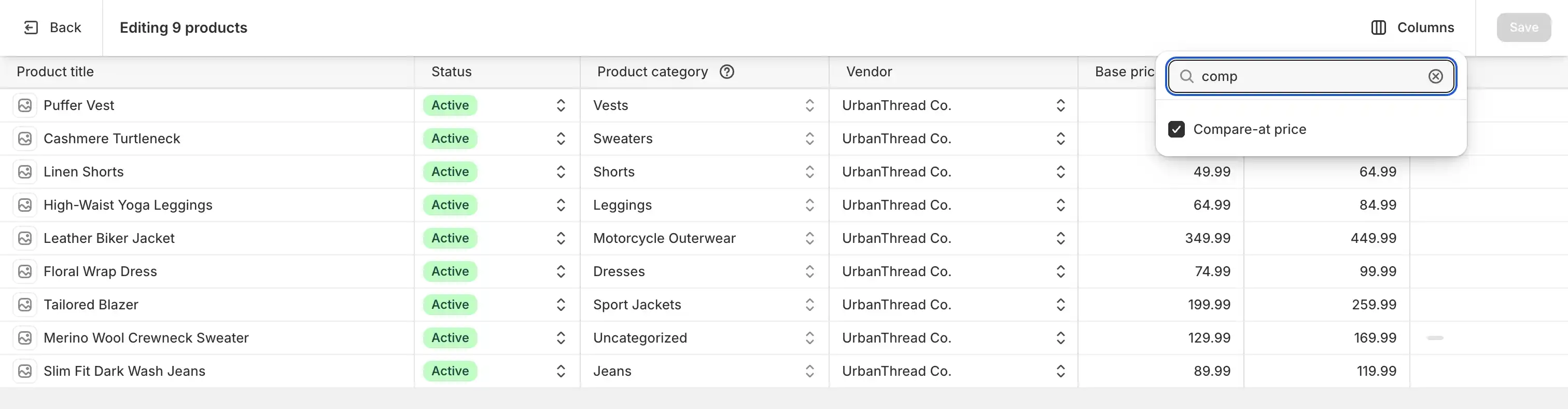
- Click Bulk edit in the action bar that appears at the top of the table. Shopify opens a spreadsheet-style editor with a column picker on the right.
- Add the Compare at price column if it isn’t already visible, type a new value into each row, and click Save.
Where it falls short:
- No math. You can’t say “set compare-at to current price + 25%”. You type each number by hand.
- No rounding. Prices end up as
$53.4675-flavored garbage if you copy from a spreadsheet. - No preview. What you type is what gets saved.
- No revert. When the sale ends, you have to manually retype every original price.
- Performance ceiling. Past a few hundred rows the page slows to a crawl.
Use it when: you’re tweaking under ~50 variants and you’re confident in the exact numbers.
Method 2 — CSV import
For larger jobs, merchants often fall back on the CSV export/import flow. It scales, but everything safe about a UI is gone — one mis-aligned column and you’ve corrupted live prices.
Steps:
- Products → Export → choose “All products” (or current selection) and the Plain CSV format.
- Open the file in Google Sheets or Excel.
- Find the
Variant Compare At Pricecolumn. The matchingVariant Pricecolumn tells you what each variant currently sells for. - Use a formula to compute new values, e.g.
=ROUND(B2*1.25, 2)to mark up the price into a compare-at that produces a 20% discount. - Save as CSV. Make sure your tool didn’t silently strip the header row or change column order.
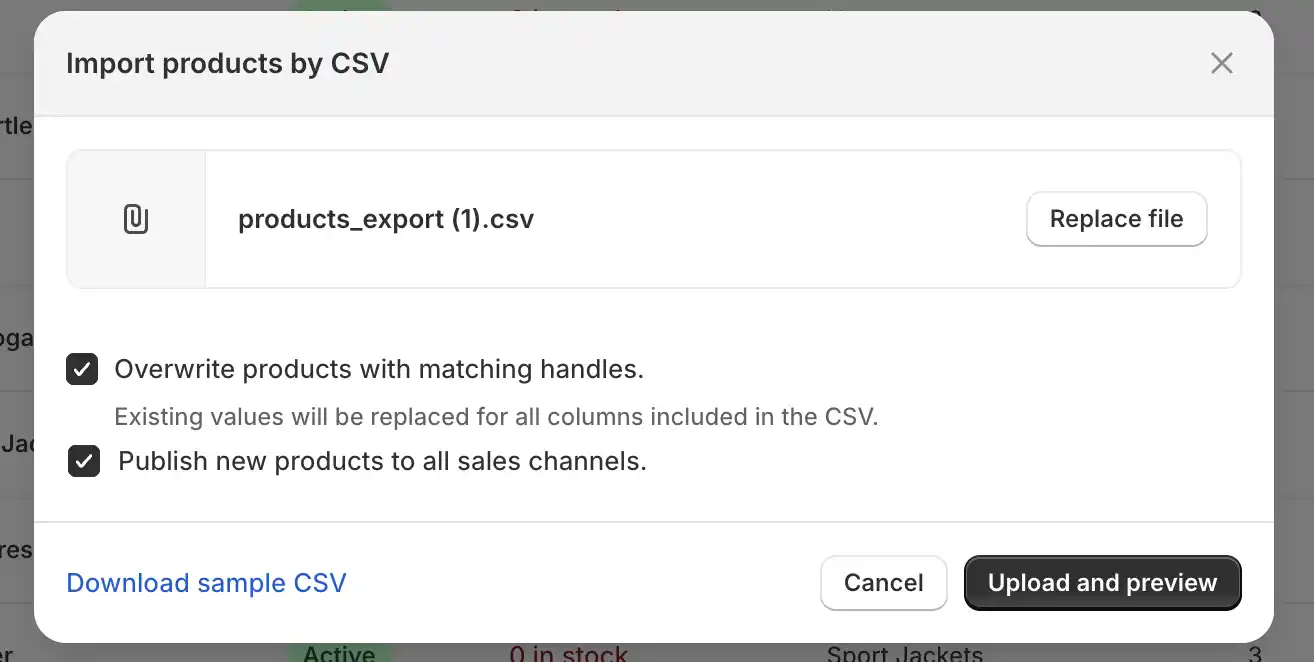
- Products → Import → upload, check Overwrite any current products that have the same handle, and run the import.
Where it falls short:
- No preview. You won’t know what changed until you view the storefront — by then, the change is live.
- Column drift kills you. If your spreadsheet tool reorders or renames headers, the import silently writes the wrong values.
- Encoding issues. Currency symbols, decimal commas, and BOM characters cause partial imports that look successful in the toast notification.
- No revert. You have to keep the original CSV around and manually re-import to roll back. Drift between snapshots makes this fragile.
- Hits ceilings. Stores past 10,000 variants regularly time out or hit row-limit errors.
Use it when: you’re a confident spreadsheet operator, your catalog is under 5,000 variants, and you’ve already exported a backup CSV before touching anything.
Method 3 — Use No Brainer: Sale & Compare-At (recommended)
If you’re running a real sale — not a one-off tweak — a dedicated app is the only option that previews changes, handles rounding, detects drift, and gives you a one-click revert. No Brainer: Sale & Compare-At was built specifically for this workflow.
The app’s flow is three steps, mirroring the way most merchants actually plan a sale.
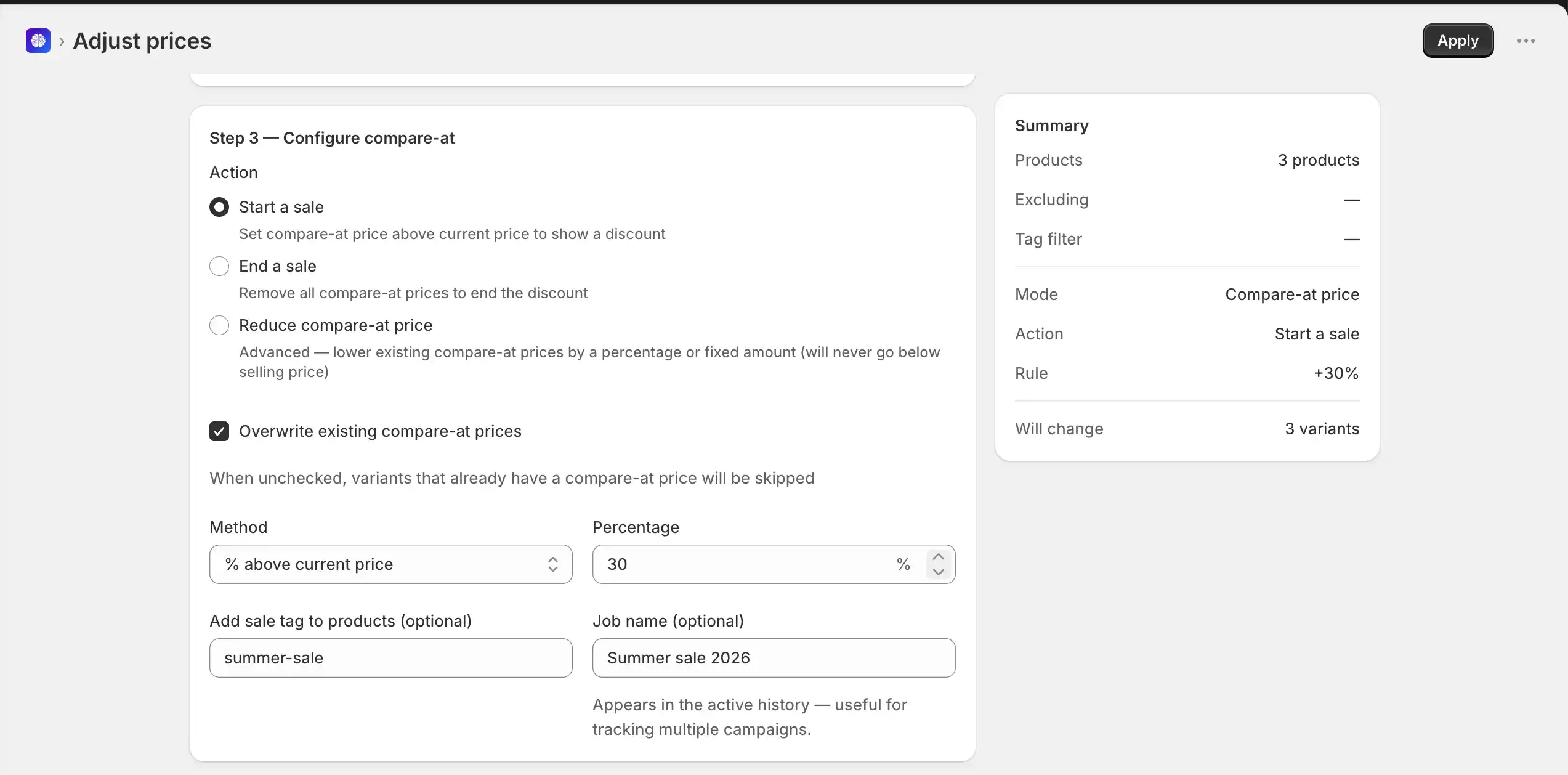
Step 1 — Choose your discount type
Pick a percentage off (e.g. 25% across the board) or a fixed amount off (e.g. $10 off every variant). Optionally enable rounding to .99 or .00 so prices look intentional, not algorithmic. The app captures each variant’s original price as the new compare-at — you don’t need to compute anything by hand.
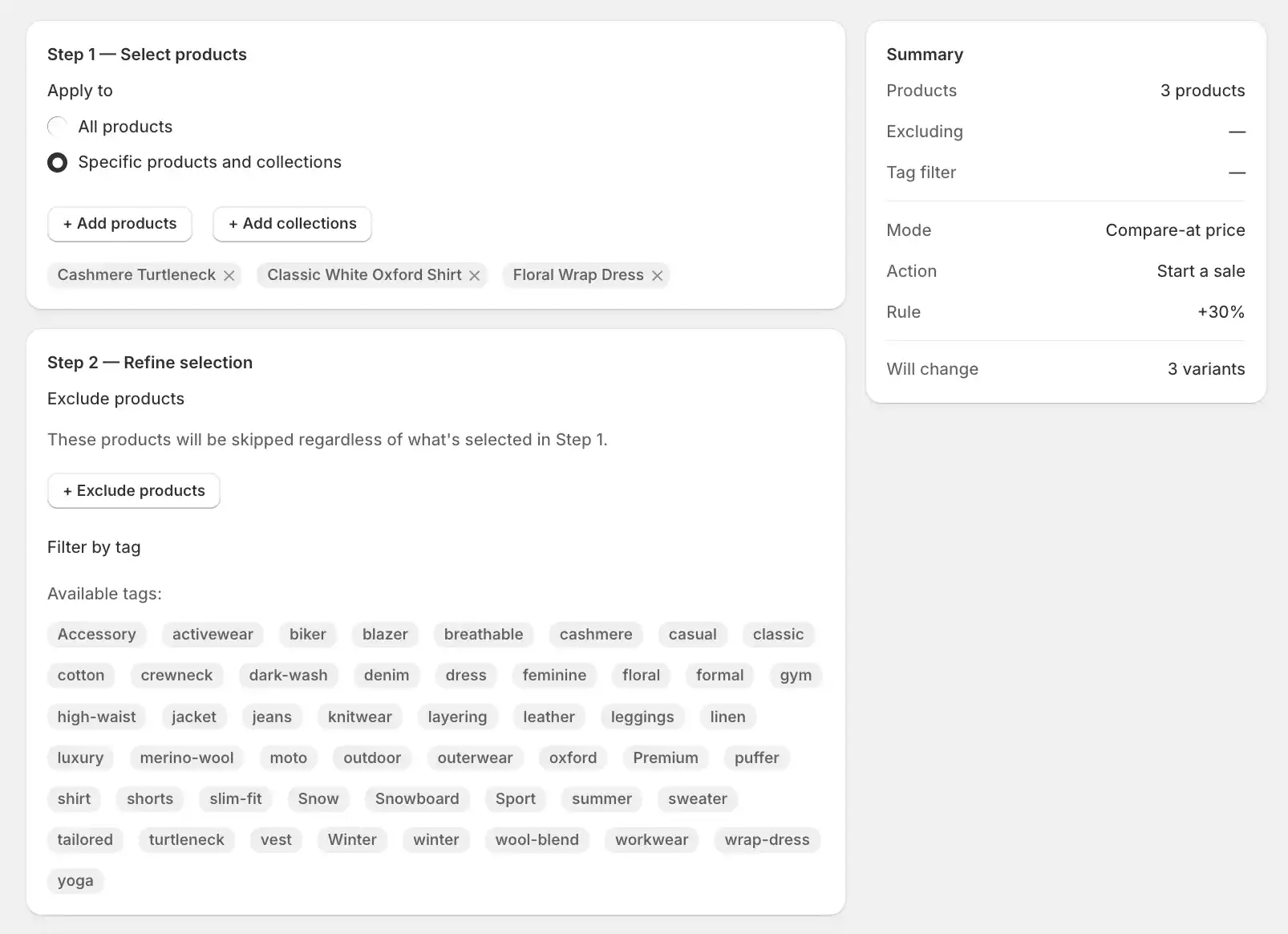
Step 2 — Target the right products
Run the sale across your whole store, a specific collection, hand-picked products, or anything matching a tag. You can also exclude products by tag — useful for keeping new arrivals or wholesale-only SKUs out of a public sale. For variants that already have a compare-at price set, you choose whether to skip them (so items already on sale aren’t double-discounted) or overwrite the existing compare-at — so the same flow works whether you’re starting fresh or layering a new sale on top of an old one.
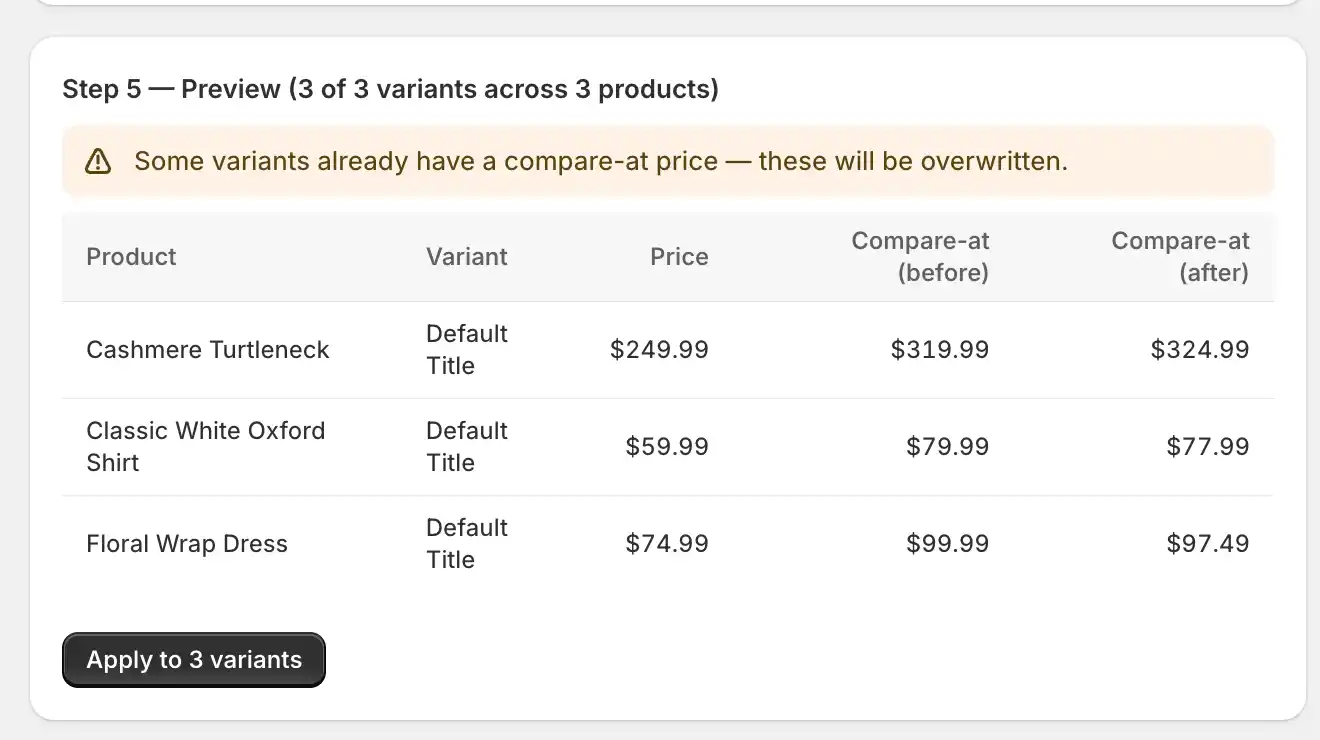
Step 3 — Preview, then apply
Before anything is written to your store, you see exactly how many products and variants will change, with the before/after price for each. Apply when you’re happy. The job runs asynchronously in the background, so a 25,000-variant catalog finishes without timing your browser out.
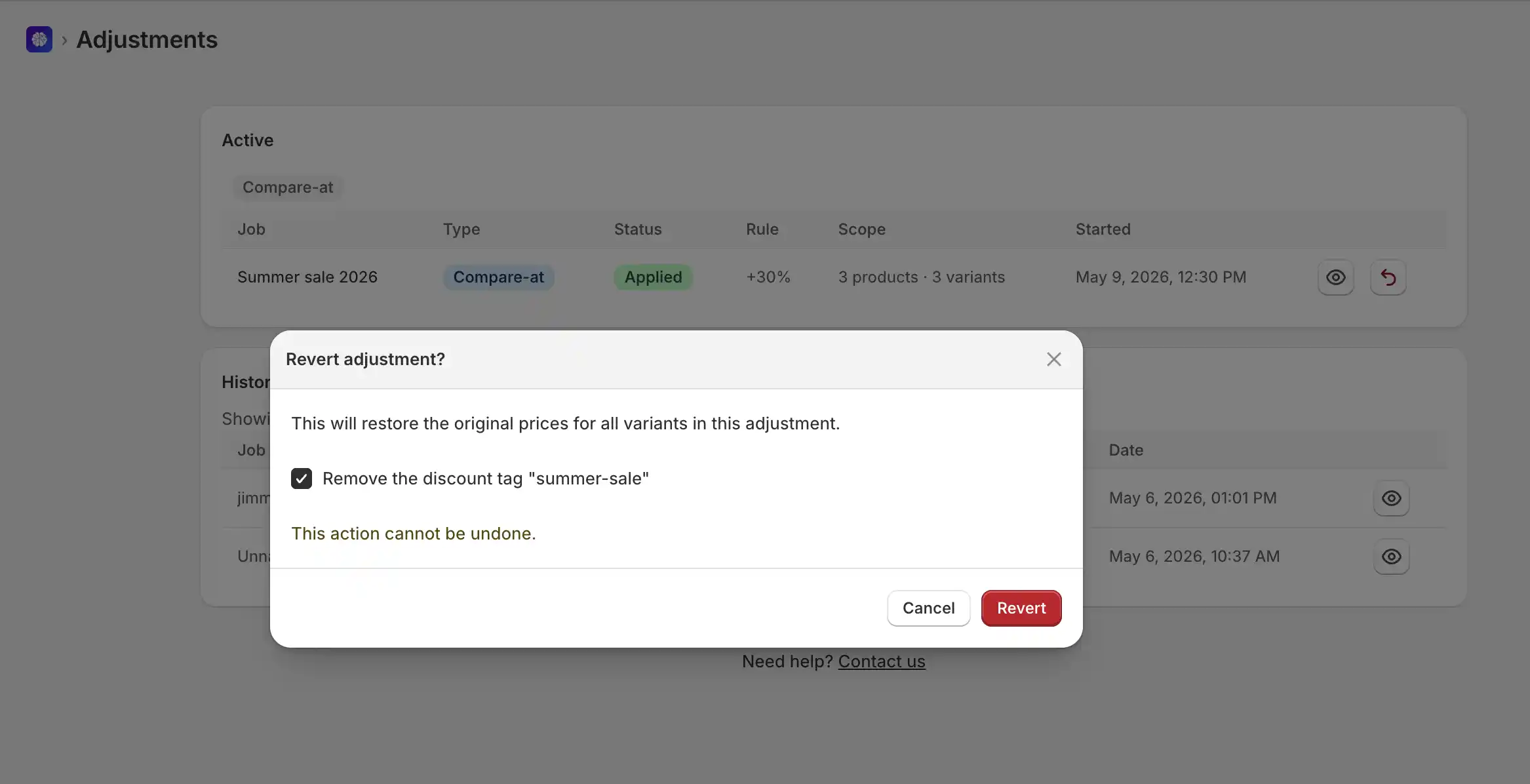
One-click revert (and drift detection)
When the sale ends, hit Revert and every variant goes back to the price that was captured at the start. The app also warns you if anyone on your team manually changed a price after the sale began (“drift”) — you decide whether to revert each drifted variant or skip it. There’s no scenario where you’re stuck typing prices back in.
You can see the full step-by-step flow on our How It Works section, and the feature list covers the audit log, async processing, and the rest.
Common pitfalls (and how to avoid them)
A few things catch almost every merchant the first time they bulk-edit compare-at prices:
- Ugly rounding.
$53.47reads like a glitch. Round to.99or.00so prices feel intentional. - Forgetting to revert. A “weekend sale” that runs for three months destroys your storefront’s credibility — set a calendar reminder, or use an app that lets you revert in one click.
- Drift from manual edits. If your team is editing prices in the admin while a sale is live, your “revert” target is moving. Pick a tool that detects drift instead of silently overwriting.
- Hitting Shopify’s API rate limits. Naïve scripts that update variants in a tight loop will get throttled or partially fail on large catalogs. Async bulk operations are the supported approach.
- Touching items already on sale. If a variant already has a compare-at price set, blindly applying a new one can stack discounts in confusing ways. Skip-existing rules avoid this.
Wrapping up
Bulk-editing compare-at prices in Shopify is one of those tasks that looks trivial until you actually do it across a real catalog. The native tools are fine for tiny edits, CSVs scale further at the cost of every safety check, and a purpose-built app is the only option that previews changes, handles rounding, detects drift, and lets you revert the whole sale on demand.
If you’d rather not spend a Saturday in spreadsheets next time you run a sale, give the app a try — it’s free to install, and our docs cover the full setup in under five minutes.
Frequently asked questions
-
Can I bulk edit compare-at price in Shopify for free?
Yes — using the native bulk editor or a CSV import. Both are included in your Shopify plan. They scale poorly and offer no rollback, so they work best for small catalogs or one-off tweaks. For ongoing sales, an app pays for itself the first time you don't have to retype prices.
-
Will bulk-editing compare-at prices affect my product URLs or SEO?
No. Compare-at price is a numeric field on the variant. It doesn't change handles, URLs, slugs, or any other indexable content. Storefront-rendered prices may briefly fluctuate while a large change is rolling out, which is normal.
-
What happens to compare-at price after a sale ends?
Nothing automatic — it stays whatever you last set. If you don't revert, your storefront will keep showing the strikethrough indefinitely, which is the single fastest way to make "SALE" badges meaningless to repeat customers. Set a clear end date, then revert.
-
Can I revert if I mess up a bulk price change?
With the native bulk editor or CSV: only by manually retyping or re-importing your last good snapshot. With No Brainer: Sale & Compare-At, every adjustment is captured in an audit log and revertible in one click — including drift handling for variants edited after the sale started.
-
Does it work with 10,000+ products?
The native bulk editor struggles past a few hundred rows. CSV imports start hitting timeouts and partial-success errors past 5,000–10,000 variants. The No Brainer app uses Shopify's async bulk operations API and is tested up to 25,000 products in a single run, so it doesn't time out or partially apply.
-
How does compare-at price differ from a Shopify discount code?
A discount code reduces the price at checkout but leaves the displayed product price unchanged. Compare-at price changes what the storefront *shows* — the strikethrough that signals "this is on sale" before the buyer reaches the cart. They serve different purposes, and high-converting sales typically use both.