
Compare-At Price vs Discount Codes on Shopify: When to Use Each (2026)
Compare-at price and discount codes look similar but solve different problems. How each works, when to use which, and how to combine them without hurting conversion.
Most Shopify merchants reach for whichever discount tool they bumped into first. Some live in compare-at price — the strikethrough on the product page. Others live in discount codes — the box at checkout. Both look like ways to “put something on sale,” and that surface similarity is exactly why the wrong one gets picked.
They’re not interchangeable. Compare-at price vs discount code on Shopify is a question about where in the funnel the discount is visible, and picking the wrong tool is the single most common reason merchants tell us “my sale didn’t convert.” This post walks through what each does, when each is right, and how to combine them without tanking your margin.
TL;DR
- Compare-at price is a storefront signal. It changes what buyers see — the strikethrough and “Sale” badge on the product page, collection grid, and Google Shopping feed.
- Discount codes (and automatic discounts) are a checkout adjustment. They change what buyers pay, but are invisible until the cart.
- Most high-converting sales use both — compare-at to drive click-through, a code on top for targeted segments. The rest of this post covers when each is right and how to layer them.
What is compare-at price?
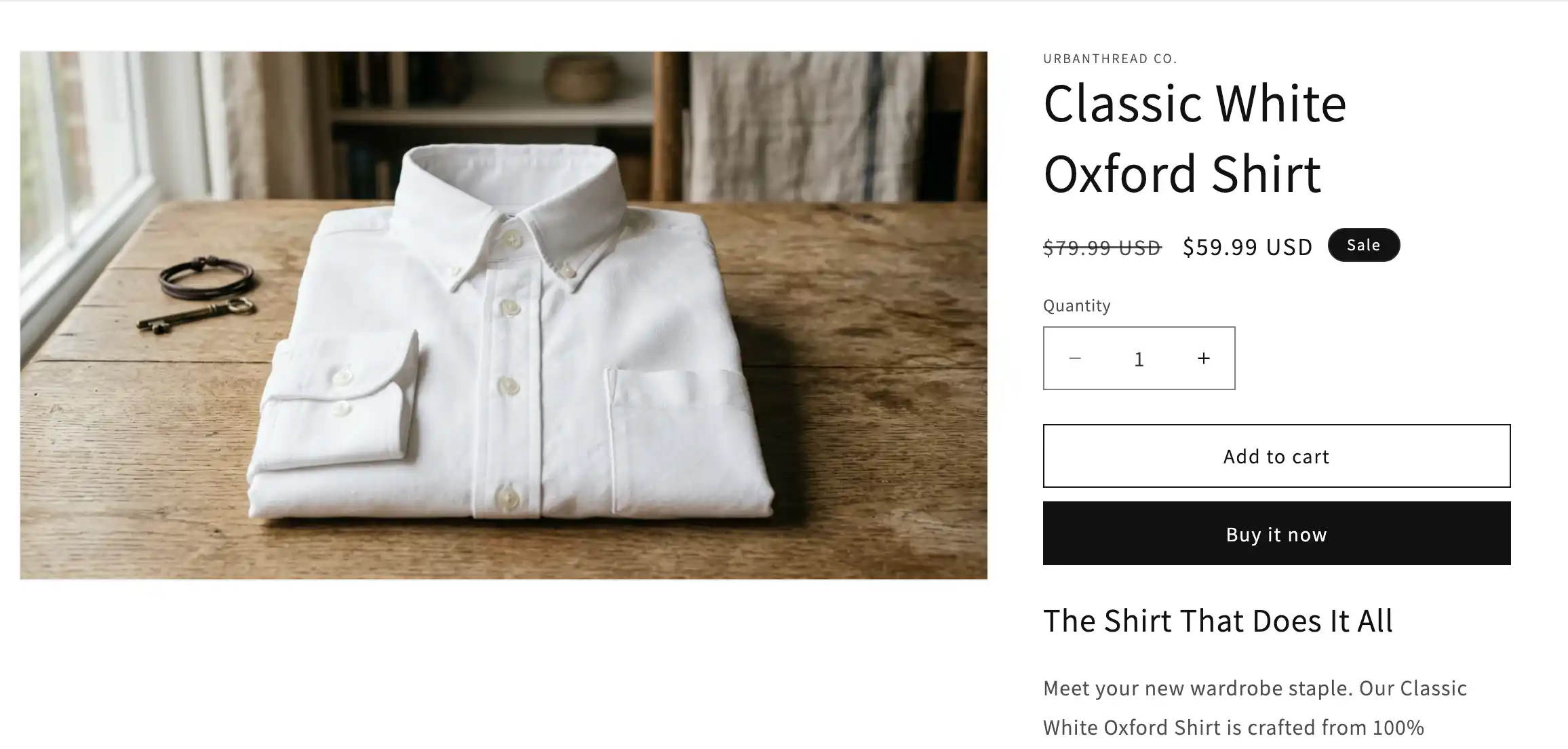
In Shopify, every product variant has two price fields: price (what the customer pays) and compare-at price (the “original” price, displayed with a strikethrough). Set price to $80 and compare-at to $100, and the storefront shows $100 $80 — plus most themes will slap a “Sale” badge on the product card.
Compare-at is what makes the discount visible before checkout. It renders on the product detail page, on collection grids, in storefront search results, and in the Google Shopping feed Shopify generates for you. Buyers don’t need to click into the cart to know something is discounted — the strikethrough does that work upfront.
The catch: compare-at is set per variant, not per product or collection. A store with 1,000 products and 4 variants each is 4,000 fields to touch. There’s no native “end this sale on Friday” toggle either — if you don’t manually revert, the strikethrough stays forever, and the “Sale” badge gradually becomes wallpaper.
What is a Shopify discount code?
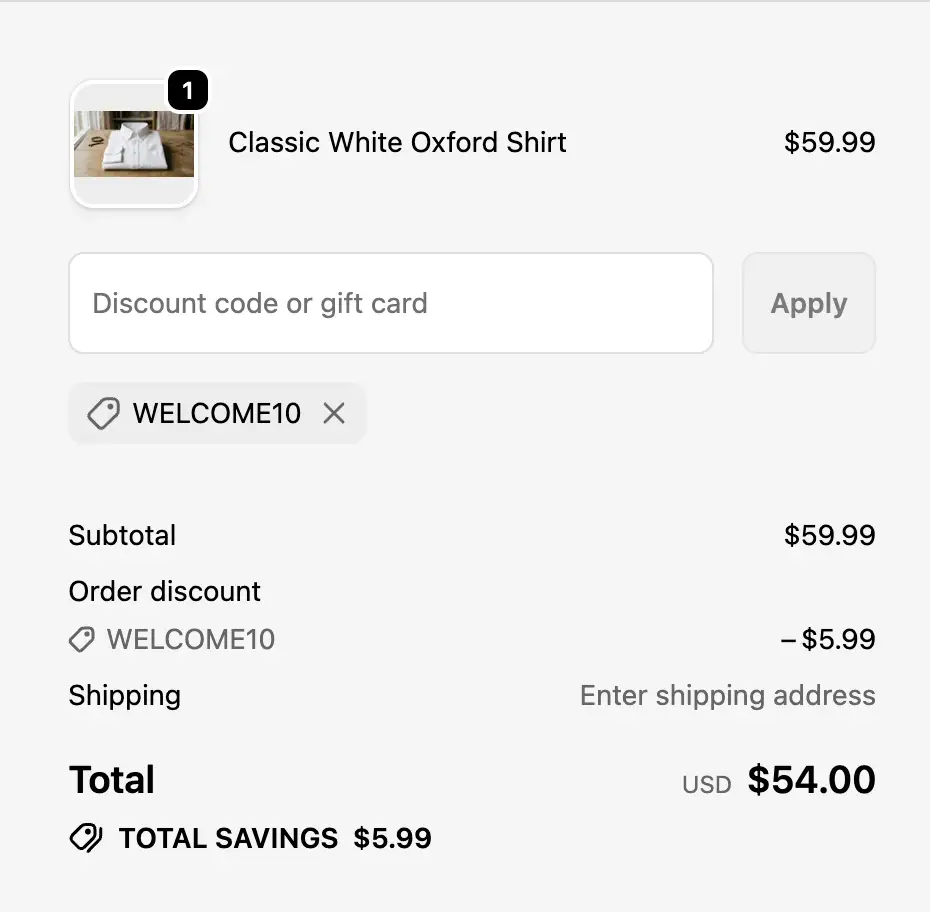
A discount code is a string the buyer types into the checkout (SAVE20, WELCOME10) that reduces the order total. Shopify also supports automatic discounts — the same engine, but applied without a code as long as the cart matches a rule (e.g. “10% off when subtotal > $100”). Both reduce the amount charged at checkout. Neither touches the displayed product price.
That’s the part most merchants miss. A discount code only exists once the buyer is in the cart or on the checkout page. The product page keeps showing the original price. Unless you actively surface the code in marketing — banner, popup, email, paid ad copy — buyers won’t know the sale is happening, and the conversion lift you expected will be invisible.
What discount codes do well: they’re trivially time-boxed (set a start/end date and Shopify enforces it), they support rules compare-at can’t (BOGO, free shipping over $X, free gift), and they’re trackable. You can hand INFLUENCER10 to one creator and BLOGGER15 to another, then measure which audience converted.
Side-by-side comparison
| Dimension | Compare-At Price | Discount Code / Automatic Discount |
|---|---|---|
| Where it’s visible | Product page, collection grid, search, Shopping feed (not at checkout) | Cart and checkout only |
| Buyer effort | None — they see the sale immediately | Must enter code (or trigger an auto rule) |
| Best for | Storewide, collection, or seasonal sales | Email campaigns, affiliates, BOGO, thresholds |
| Time-boxing | Manual revert (or app-driven) | Built-in start/end dates |
| Rollback | Manual or via app | Toggle off — no catalog changes to undo |
| Targeting | Per variant via tags / collections | Per-cart rule (segment, minimum, product) |
| Effect on PLP click-through | Strong — “Sale” badge drives clicks | None |
| Effect on cart abandonment | Indirect | Direct — recovers price-sensitive buyers |
| Google Shopping feed | Reports as a sale (sale_price field) | No effect |
When to use compare-at price
Reach for compare-at when the goal is making the sale visible to as many buyers as possible, before they’ve committed to anything. Specifically:
- Storewide or large-collection sales. Summer sale, end-of-season clearance, “everything 25% off.” Buyers should see the discount the second they land on a category page.
- BFCM and seasonal moments. The whole point of Black Friday is that buyers are shopping for sales — strikethrough prices are how they recognize one.
- Sales that need to appear in Google Shopping. Compare-at populates the
sale_pricefield in Shopify’s product feed, which is what powers sale annotations in Shopping results. - Anything where you want the “Sale” badge to drive click-through from the collection grid. Themes use compare-at as the trigger.
The friction is operational, not strategic — applying compare-at across hundreds or thousands of variants by hand is painful, and so is reverting it. We cover both in detail in bulk-editing compare-at prices on Shopify.
When to use a discount code
Reach for a discount code when the discount belongs to a specific segment or rule, not the whole storefront. Specifically:
- Email-only promos. “Subscribers get 15% off this week.” The code is the gating mechanism — non-subscribers see full price, subscribers redeem.
- First-order welcome offers.
WELCOME10in the subscribe-now popup is half of what makes the popup worth running. - BOGO, free shipping over $X, free gift. Compare-at can’t express these. Discount rules can.
- Affiliate or influencer tracking. Unique codes per partner are the cheapest attribution model that actually works.
- Time-boxed flash sales you want to kill instantly. Toggling a code off is a single click. Reverting compare-at across 4,000 variants isn’t.
If you find yourself reaching for a code to run a storewide sale, you’ve probably picked the wrong tool — buyers won’t know the sale exists.
Combining both: the high-converting pattern
The sales that convert best usually use both together. The pattern looks like this:
- Set compare-at storewide (or across the sale collection) so every product page, collection grid, and Shopping ad shows the strikethrough. Click-through from collection pages goes up the moment the “Sale” badge appears.
- Layer a short-lived discount code on top —
EXTRA10for newsletter subscribers,VIP15for repeat customers, or an automatic discount that triggers above a cart threshold.
One thing to know about how this looks to the buyer: Shopify’s checkout only shows the code’s effect (e.g. −$12 EXTRA15) applied to the current price. The original compare-at price is not rendered with a strikethrough at checkout — that visual reinforcement lives on the product page, collection grid, and (theme-dependent) cart drawer. So the buyer sees the “big savings” framing before they reach checkout, and the code’s “extra savings” framing at checkout. The two messages stack across the funnel, not on the same screen.
Two things to watch when stacking:
- Margin math. The discount code applies to the sale price, not the compare-at. A 25% compare-at discount plus a 15% code is a 36.25% total discount, not 40%. Build the spreadsheet before you announce the promo.
- Rollback asymmetry. The code expires automatically on its end date. Compare-at doesn’t — it sits there until something (or someone) reverts it. The “weekend sale” that’s still running in March is almost always a compare-at that nobody rolled back.
Common pitfalls
A few things catch almost every merchant the first time:
- Running a discount code without lowering the displayed price. Buyers never see the offer unless your marketing surfaces it. If the only place the code appears is the checkout, it isn’t doing any work.
- Leaving compare-at set after the sale ends. Permanent “SALE” badges read like wallpaper. Repeat customers stop reacting to them, and your next real promo lands flat.
- Accidentally stacking promos. Auto discount + manual code + compare-at can compound into margin-destroying double-digit discounts you didn’t approve. Audit before you launch.
- Drift during a live sale. Someone on the team manually edits a price mid-sale, and now your rollback target is moving. Either freeze edits during sales or use a tool that detects drift.
Wrapping up
Compare-at price and discount codes aren’t competitors. Compare-at is a storefront signal — it makes the sale visible. Discount codes are a checkout adjustment — they reward specific segments or rules. The merchants who consistently get sales right pick the tool that matches the funnel stage they’re trying to influence, and combine the two when the goal is both reach and targeting.
The remaining friction is operational: applying compare-at across a real catalog, and reverting it cleanly when the sale ends. That’s what No Brainer: Sale & Compare-At is built to handle — preview every change, apply async at any catalog size, and revert the whole sale in one click. Free to install, and the docs cover the full flow in under five minutes.
Frequently asked questions
-
What's the difference between compare-at price and a discount code in Shopify?
Compare-at price changes what your storefront *shows* — the strikethrough that signals an item is on sale before the buyer reaches the cart. A discount code reduces what they *pay*, applied at checkout. They serve different stages of the funnel and high-converting sales typically use both.
-
Will a discount code show a strikethrough price on the product page?
No. Discount codes (and automatic discounts) reduce the price only at checkout. The product page keeps showing the original price unless you also lower the listed price or set a compare-at value. That's the single most common reason merchants think their sale 'isn't working' — buyers never see it.
-
Can I stack compare-at price with a discount code?
Yes, and it's a common pattern: use compare-at to mark items as on sale storewide, then layer a short-lived code (e.g.
EXTRA10) on top for email subscribers. Just be careful with margin math — the code applies to the *sale* price, not the compare-at. -
Do discount codes affect SEO or Google Shopping feed prices?
Discount codes don't change the price Shopify sends to feeds — Google sees the listed price. Compare-at price does change the feed: the sale price is reported as the current price and the compare-at as the previous price, which is what enables sale annotations in Shopping results.
-
How do I roll back a compare-at sale when it ends?
Manually if you used the native bulk editor or CSV — you'll need to retype or re-import. With No Brainer: Sale & Compare-At, every adjustment is captured and revertible in one click, including drift handling for variants edited mid-sale.
-
Are automatic discounts the same as discount codes?
Functionally yes — both reduce the price at checkout. The difference is that automatic discounts apply without a code (great for storewide promos) while codes require the buyer to enter them (better for targeted campaigns or affiliate tracking). Neither changes the displayed price on the product page.