
If you run your sales with No Brainer: Sale & Compare-At, a timer can count down to one of them instead of a Shopify discount. The timer takes the sale’s start and end from Sale & Compare-At. Extend the sale, end it early or delete it there, and the timer follows on its own.
You need both apps installed on the same store.
1. Schedule the sale with an end date
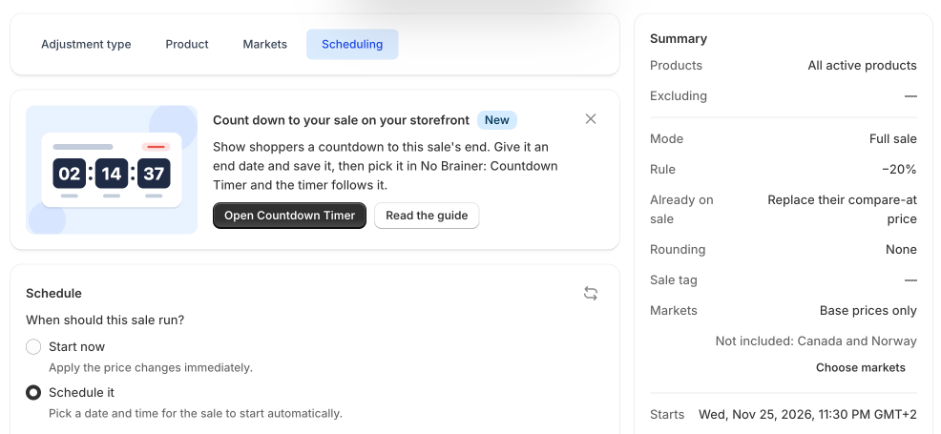
In Sale & Compare-At, create the sale as usual. On the Scheduling tab:
- Under When should this sale run?, choose Schedule it and set the Start date and Start time. For a sale that starts right away, choose Start now.
- Tick Automatically end on a specific date and set the End date and End time.
- Click Schedule sale, or Apply for a sale that starts now.

The timer counts down to that end, so a sale with no end date can’t be picked.
The Scheduling tab also shows a card for Countdown Timer. Before the app is installed, Get Countdown Timer opens Shopify’s install screen. The app’s home page shows the same offer. Once Countdown Timer is installed, the card reads Open Countdown Timer and opens it in a new tab, so you don’t lose the sale you’re editing.
2. Link a timer to the sale
In Countdown Timer:
- Click Create timer, then pick a design or click Start blank. To link an existing timer, open it instead.
- In the Schedule card, open the Discount list. Your scheduled and live sales are listed under Sale & Compare-At sales, below your Shopify discounts, each with its end date.
- Pick the sale. The help line under the list now says the timer counts down to this sale’s end date. For a sale that hasn’t started, it also says when it starts.
- Choose what happens When it reaches zero, and set the text and style as for any timer (Create a timer).
- Turn on Publish to your storefront and click Save.
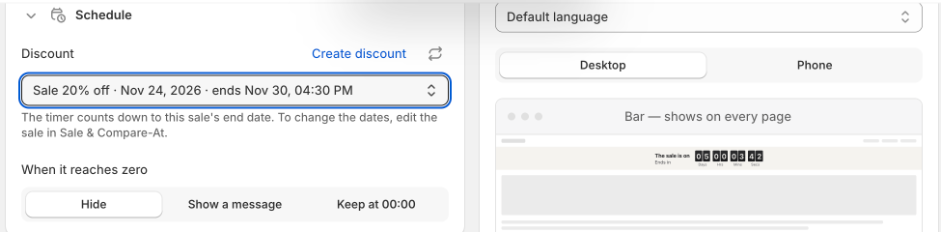
Sales with no end date are listed under No end date — add one in Sale & Compare-At and can’t be picked. Ended sales aren’t listed.
The timer needs the app embed turned on in your theme, like every timer. See Getting started.
What the timer follows
You never change the timer’s dates in Countdown Timer. Change the sale in Sale & Compare-At, and within about a minute your store shows the change:
| In Sale & Compare-At | On your store |
|---|---|
| The sale is scheduled | The timer appears when the sale starts. |
| You extend or shorten the sale | The timer counts to the new end. |
| You end the sale early | The timer ends, as at zero. |
| The sale ends on schedule | The timer reaches zero. |
| You remove the sale’s end date | The timer comes off your store. Its status reads Discount has no end date. |
| You delete the sale from your history | The timer comes off your store. Its status reads Discount deleted. |
| You uninstall Sale & Compare-At | Timers linked to its sales come off your store. |
A timer whose sale was deleted or lost its end date stays in your list. Open it and pick another sale or discount.
Note: If your store is busy when a scheduled sale is due to start, Sale & Compare-At can start it a little later. The timer appears at the scheduled start, so for a few minutes it can show before the sale prices do.
Markets
If you sell in several countries with Shopify Markets, the timer shows only in countries where the sale changes the prices:
- A sale on your normal prices doesn’t reach markets that have their own fixed prices, unless you ticked them on the sale’s Markets tab. The timer is hidden in those countries.
- A sale only on market prices shows the timer only in the markets you ticked.
Everywhere else, shoppers see the timer as usual.
Note: A market counts as having fixed prices if it has any, even for other products. The timer is hidden there too, unless you ticked it on the sale.
Where the timer shows
A timer linked to a sale shows where any timer shows: a Full-width bar on every page, or a Card in the page wherever you add the Countdown timer block. It isn’t limited to the sale’s products. To show a card only next to the sale, add the block only to those pages. See Where timers appear.
I don’t see my sales in the list
- Sale & Compare-At isn’t installed on this store.
- The sale has ended. Only scheduled and live sales are listed.
- The sale has no end date. It’s under No end date — add one in Sale & Compare-At. Add an end on the sale’s Scheduling tab.
- The list didn’t load. If Sale & Compare-At can’t be reached, the list shows only your Shopify discounts. Try Refresh list in a minute.