
A discount code created in this app is a regular Shopify discount code: shoppers type it at checkout. The difference is that it skips products your sales have already reduced, so the code’s discount never stacks on a sale price.
You can also start one from Shopify’s own Discounts page: Create discount → No Brainer sale-aware discount opens the same form in the app.
Note: Discount codes are part of the Growth plan. On the Free plan, the Discount codes page links to Plans, where you can start a 14-day free trial. Stores that installed the app before paid plans launched have them for free.
Create a code
- In the app, go to Discount codes → Create discount.
- Enter a code, or click Generate random code.
- Under Discount value, choose Percentage or Fixed amount, and what the code Applies to: all products, specific collections, or specific products. A fixed amount comes off each eligible product, unless you tick Only apply discount once per order.
- Leave Also apply to products already on sale unticked (see Products on sale).
- If you like, set a minimum purchase, a usage limit, which other discounts the code combines with, and when it starts and ends.
- Click Create discount.
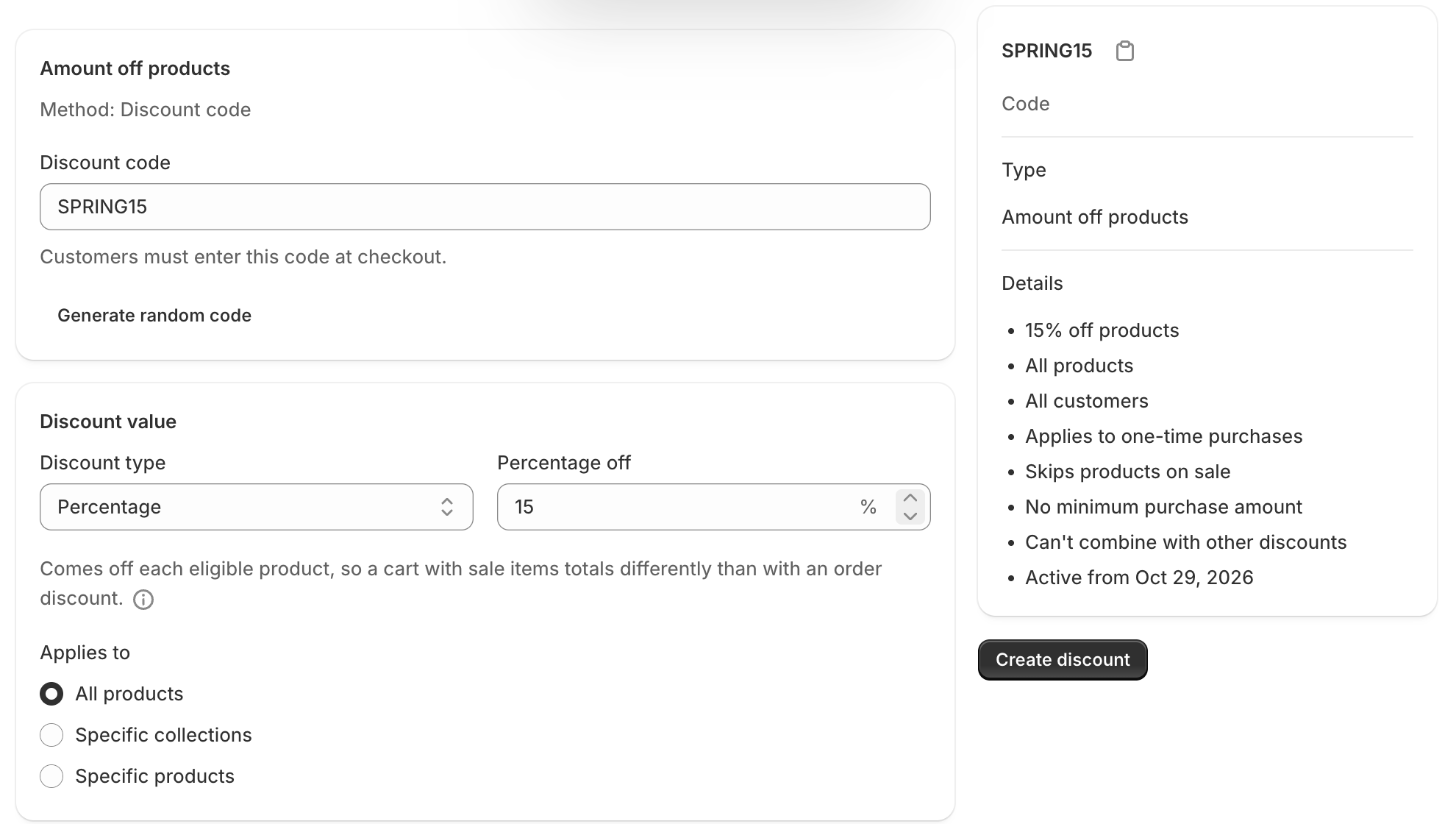
The summary on the right shows what the code will do while you fill in the form.
Your codes are listed on the Discount codes page. From there you can activate, deactivate or delete a code, or click it to edit it.
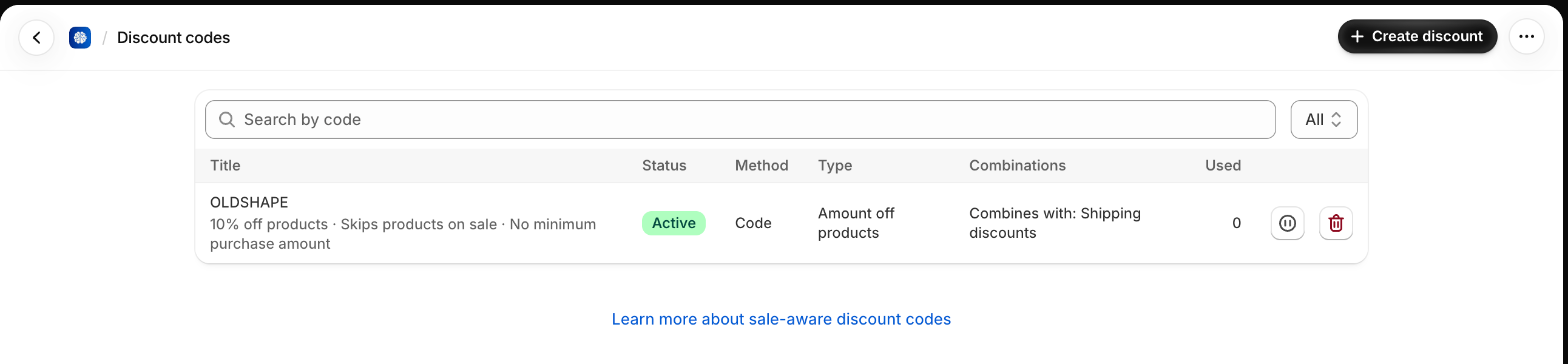
Products on sale

With Also apply to products already on sale unticked (the default), the code skips any product that one of your sales in this app has reduced:
- In a mixed cart, only the full-price products get the code’s discount.
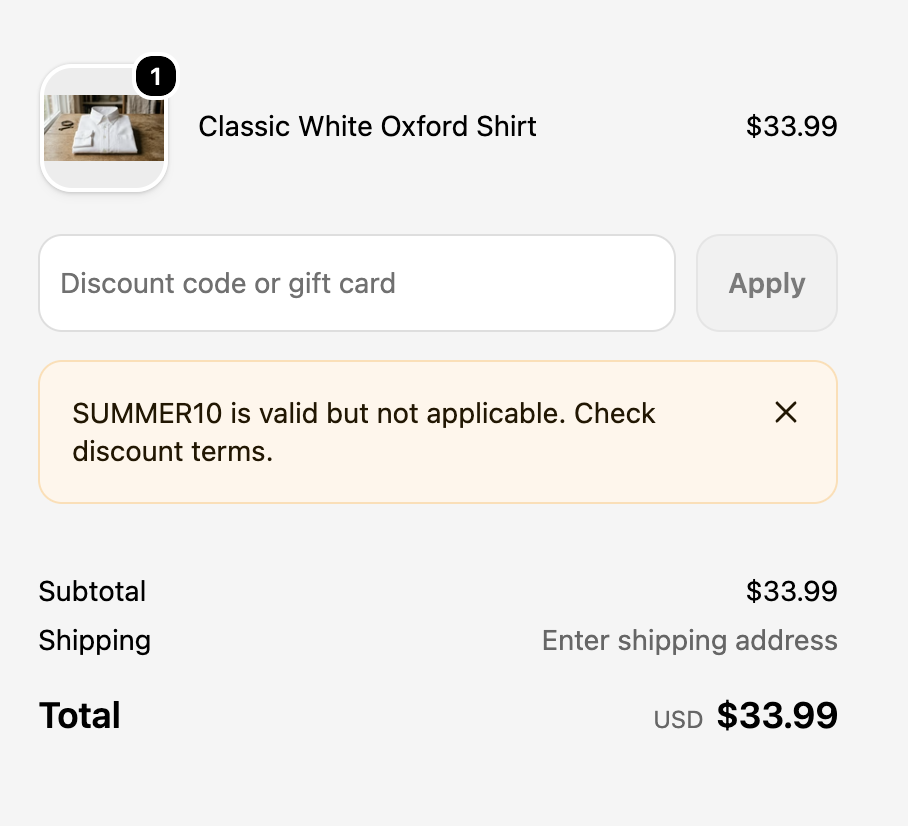
- On a cart of only sale products, checkout accepts the code but takes nothing off.
Tick it if you want the code to apply on top of sale prices as well.
Compare-at price sales don’t change what customers pay, so they don’t count as sales here: the code still applies to those products.
Running sales
A product is marked as on sale at the moment a sale is applied. A sale that was already running before sale-aware codes reached your store wasn’t marked, so codes don’t skip its products. A very large sale can also be applied without the mark. When either happens, the create and edit pages say how many running sales aren’t covered, under Products on sale.
To cover such a sale, end it on the Adjustments page, then click Duplicate on its row to start it again with the same settings. If that’s disruptive, you can leave it: every sale you apply from now on is covered.
Fixed amounts
A fixed amount comes off each item. With a €2 code, a cart with three of one product and one of another gets €8 off: €6 on the first line and €2 on the second.
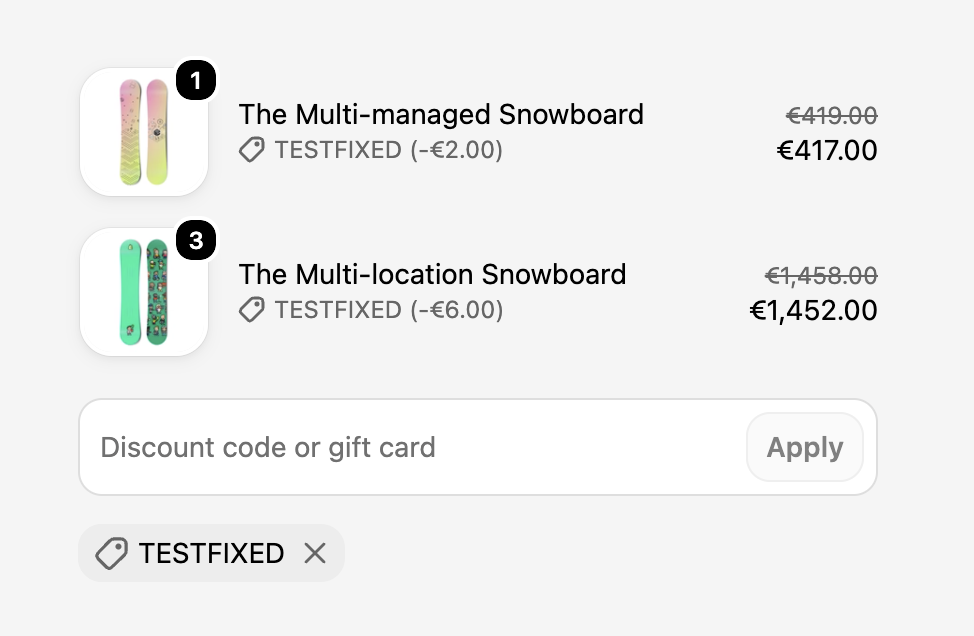
Tick Only apply discount once per order to take the amount off once instead. The same cart then gets €2 off in total, split between the products by price.
The amount is in your store’s currency. Customers paying in another currency get the converted amount.
Minimum purchase requirements
A code can require a minimum purchase amount or a minimum number of items. Every product in the cart counts toward the minimum, including products already on sale and products outside the products or collections you chose. The discount itself still applies only to the products the code covers.
For example, take a code with a €50 minimum, and a cart with a €40 sale product and a €20 full-price product. The cart totals €60, so the minimum is met, and the code takes its discount off the €20 product only.
This differs from Shopify’s own discount codes, where only the products a discount applies to count toward its minimum.
The minimum amount is in your store’s currency. Carts in other currencies are converted automatically.
Combinations
By default a code doesn’t combine with other discounts, like Shopify’s own codes. Under Combinations, tick the kinds of discount it may be used with.
If your store runs an automatic discount that doesn’t combine with other discounts, checkout turns the code away with “couldn’t be used with your existing discounts”.
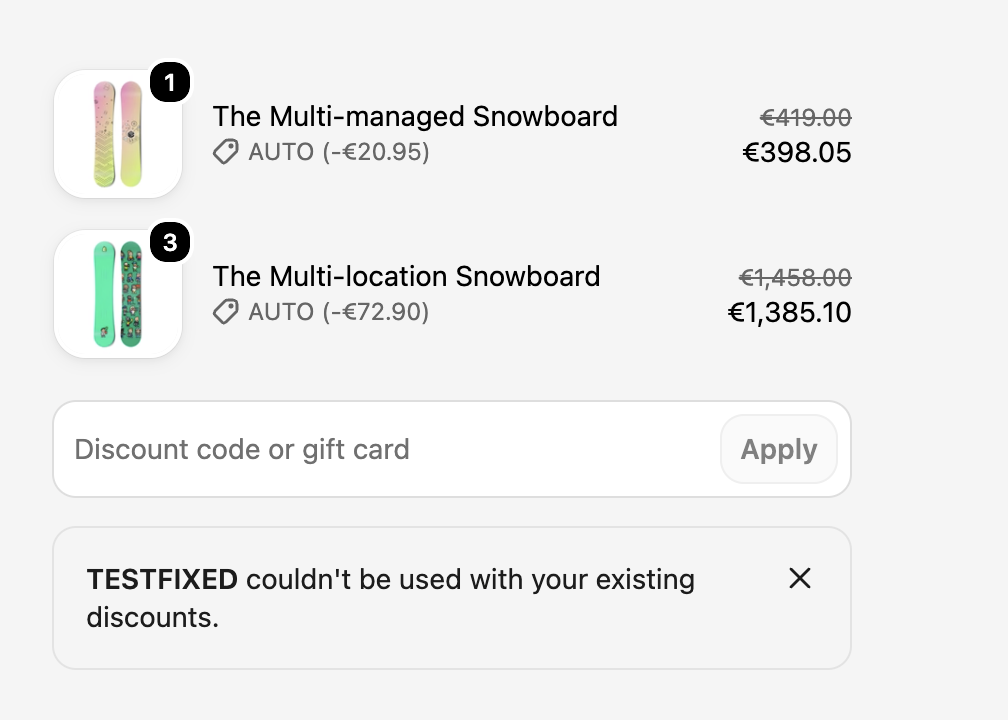
To use both together, allow combining on both discounts. For an “Amount off products” automatic discount, tick Product discounts on this code, and Product discounts on the automatic discount in Shopify’s Discounts.
Existing codes
Only codes created in this app skip sale products. Discount codes made on Shopify’s own Discounts page don’t know about your sales, so they still stack on sale prices. To protect one, delete it in Shopify and create it again here with the same code.
Codes created in the app also appear in Shopify’s Discounts list. Clicking one there opens it in the app.
Check it’s working
Add an on-sale product and a full-price product to a test cart, then apply the code at checkout:
- The on-sale product is not discounted.
- The full-price product is discounted.
Using Sidekick
Ask Sidekick to list your sale-aware codes, or to set one up: for example, “Create a sale-aware discount code SPRING15 for 15% off with a minimum of 2 items”. It opens the create form filled in, and nothing is saved until you click Create discount.
If you leave Growth or uninstall
If you move from Growth to Free, your sale-aware codes are turned off.
Sale-aware codes rely on the app, so they also stop applying once it’s uninstalled. Delete them first if you don’t want customers trying codes that no longer work.
Limits
- Codes apply to all customers, for one-time purchases.
- Gift cards in the cart count toward a minimum purchase amount.
If a code ever applies to something on sale, or doesn’t apply to something at full price, write to support@no-brainer.app with the discount code, the product, and roughly when it happened.